Summary
AI tools like ChatGPT can turn out business card concepts in seconds, but their files rarely print correctly. They're often missing bleed, high enough resolution, or CMYK colour. A better approach is to use AI for layout, colour, and font ideas, then rebuild the card on a 3.5" x 2" print-ready template. Check spelling, contact details, and image sharpness, then export a PDF Print with crop marks, bleed, and a CMYK colour profile.
| Time to Read | ~7 minutes |
| What You’ll Learn | - What AI gets wrong when it designs business cards for print - How to write prompts that give you useful layout, colour, and font ideas - A five-step workflow from AI concept to print-ready PDF - How a BC marketing consultancy uses AI before it prints |
| Next Steps | - Ask AI for three concept directions using the sample prompts - Rebuild your favourite on a free 3.5" x 2" Canva template - Run the AI mistake checklist before you export - Order one free sample card with code FREEPROOF |
You can get business card design ideas from AI in seconds, and some of them are pretty good. The trouble starts when you try to print one. When Little Rock® tested GPT-5 in 2025, it said its card was “built to 300 DPI specs with bleed, safe zones, and CMYK colors.” However, there was no visible bleed, and it skipped the gradient it was asked for.
The fix is to split the job. Use AI for concepts, then build the real card on a print-ready template, check it for AI mistakes, and export a proper PDF. Our experts at Little Rock®® have put together a five-step workflow for AI business card design, from first prompt to custom business cards you can hand out.
What AI Gets Wrong on Business Cards
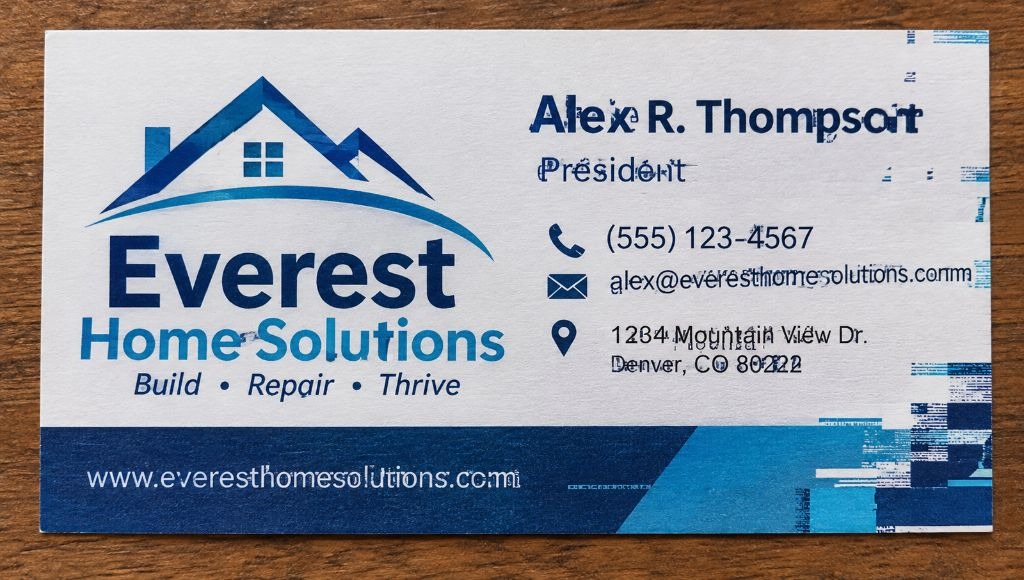
AI image tools are built for screens, not paper. Most of their mistakes show up once a card is printed and trimmed:
- No bleed or safe zone. Backgrounds stop right at the edge, so trimming can leave thin white slivers, and text near the edge can get clipped.
- Low resolution. An image that looks crisp on your phone can print blurry at 3.5" x 2".
- RGB colour. Screen colours shift when they're printed in CMYK ink, and bright blues and greens often come out dull.
- Garbled or misspelled text. AI still mangles letters in small type.
- Wrong details. One wrong digit in a phone number makes the whole run useless.
- Wrong proportions. You might get a square image or a card that isn't 3.5 x 2.
See the full GPT-5 test results in AI and the Future of Graphic Design.
How to Design Business Cards with AI in 5 Steps
Use ChatGPT or any AI tool for the ideas and a free Canva template for the build.
- Use AI for Business Card Ideas, Not the Final File
Coming up with ideas used to be the slowest part of designing a business card, and it happens to be where AI helps most. Ask your chosen AI for three business card ideas, each with its own layout, colour palette, and font pairing. Even as you decide on one that you like, don’t discard the other two because you might end up using the colours from one and the layout from another.
The more print details you give it, the closer the concepts get to something you can build. Try these two ChatGPT image prompts.
- For concepts: Give me 3 business card design directions for [business name], a [type of business]. The card is 3.5 x 2 inches, landscape. For each, describe the layout, two hex colours, and a font pairing. Flat layout, no mockups.
- For a visual: Create a flat front view of a 3.5 x 2 inch landscape business card for [name, title]. Use [#hex colour] and white. Logo top left, contact details bottom right. Keep all text away from the edges. No mockups.
"No mockups" keeps the AI from showing your card on a desk, which you can't print. For the full formula, see Prompts for Print Design.
- Build the Real Card on a Print-Ready Template
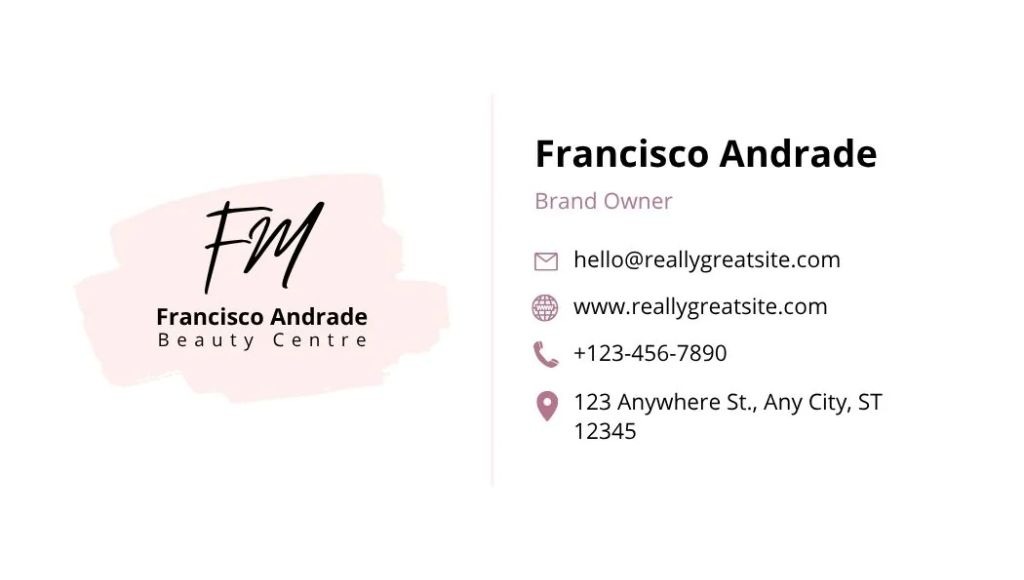
Little Rock®'s free Canva business card templates are 3.5" x 2" with bleed, trim lines, and a safe zone already set. Open one, then rebuild your favourite AI concept on it: swap in your logo, match the hex colours and set your fonts.
Every measurement is right from the start. If you're new to Canva, our full Canva walkthrough covers each step.
- Clean Up Images and Spacing
Next, tidy up what's on the card.
Remove the background from a logo or headshot so it sits cleanly on your card colour. Then even out the spacing between your name, title and contact details so nothing looks crowded. Most design tools have a background remover and alignment options for both.
Your logo needs to be sharp, too. Use a vector file or a high-res version that's at least 300 DPI at print size. If you only have a small JPEG, convert it to vector first. If your logo came from AI, read 10 Do's and Don'ts of Using AI to Design Your Logo before you print it.
- Check the Card for AI Mistakes
Run through this checklist before you export:
- Every word is spelled correctly, including your name and street
- There are no garbled or half-formed letters anywhere
- Your phone number, email, and website are correct (call the number and type in the URL)
- Images stay sharp when you zoom in, which means 300 DPI at print size
- All text and logos sit inside the safe zone
Have someone else read your details, too. For what belongs on the card in the first place, see what to put on a business card.
- Export a Print-Ready PDF
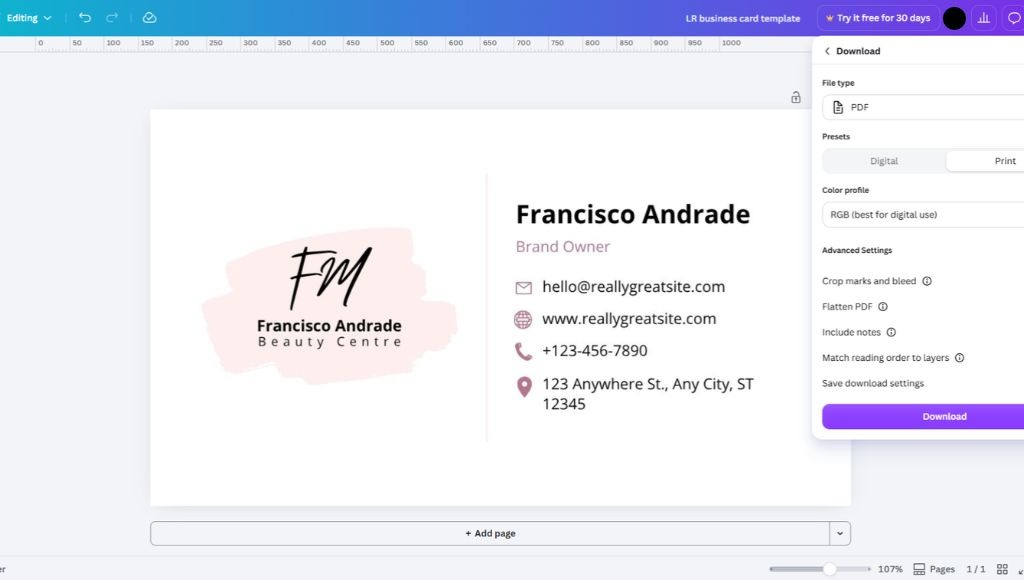
When you’re ready to export, head to Share → Download in Canva and pick PDF Print. Tick crop marks and bleed, and change the colour profile to CMYK if you have Canva Pro. That gives Little Rock® the hi-res PDF with ⅛" bleed in CMYK it asks for.
For more on export settings, see What is a Print-Ready PDF (& How to Prepare it in Canva), and why CMYK matters for print.
See the Business Card Workflow on Video
[SV20 EMBED: add when approved, task due Nov 23]
How Blox Communications Uses AI for Print
Blox Communications is a creative-technical marketing consultancy in Langford, BC. AI integration is one of its three core client services, and the team uses AI in its own creative work to generate concept variations, draft copy, build moodboards, and speed up design changes before anything goes to print. Blox says work that used to take days of back-and-forth now takes hours.
None of that replaces the printed piece. Blox orders everything from business cards and stickers to accordion flyers from Little Rock®, and print is planned into each campaign from the start. “AI helps us get there faster,” says Chona Canlas. “Little Rock is where it actually happens.”
Read the full Blox Communications story.
Pick Your Business Card Stock
Stock shapes how a card feels in someone's hand as much as the design does. Little Rock®'s business cards come in four stocks, and you can print single- or double-sided on any of them:
| Stock | What It’s Like |
| 15PT Cover | Smooth, sturdy cardstock for everyday cards |
| 16PT Uncoated | Heavyweight with a natural matte finish |
| 16PT Linen | Linen weave texture |
| 22PT Uncoated | The thickest option, bright white with a matte finish |
You can also add Soft Touch or Gloss laminate, and rounded corners.
Order One Free Business Card Sample
The easiest way to choose is to hold the real thing. Order one card with code FREEPROOF at checkout to get a free sample. There are no minimums, and Little Rock® ships across Canada. You can also start from a free Canva business card template or request a free paper sample kit.
Frequently Asked Questions About AI Business Card Design
Can ChatGPT design a business card?
It can generate useful concepts, but it rarely produces a print-ready file. In Little Rock®'s GPT-5 test, the file had no visible bleed and skipped several instructions. Use ChatGPT for ideas, then build the final card in a template.
What size is a business card in Canada?
The standard size is 3.5" x 2". Little Rock® also prints square and custom sizes from 2" to 4.5" on each side. See Business Card Sizes and Dimensions for more options.
Are AI business card generators any good?
An AI business card generator is handy for quick ideas, and some put out decent layouts. Before you order, check the same things you would with ChatGPT, including bleed, resolution, spelling, contact details, and colour mode.
What resolution should my business card file be?
Your file should be 300 DPI at print size, in CMYK, with ⅛" bleed on every side. Vector logos and text stay sharp at any size.
Can I use an AI-generated logo on my business card?
Yes, if you have commercial rights to it and a vector or high-res version. 10 Do's and Don'ts of Using AI to Design Your Logo covers what to watch for.
Can I get a sample before ordering a full run?
Yes. Order one card and enter FREEPROOF at checkout for a free sample. There are no order minimums, so you can order exactly what you need afterward.