Summary
ChatGPT images are made for screens, so most come out big enough for a business card but too small for a sharp flyer or poster. Print files need 300 DPI at the finished size, so check pixels first and upscale when they fall short. RGB colours should be converted to CMYK, backgrounds need ⅛" of bleed, and text belongs inside the safe zone. Logos and lettering print best as vectors, while photos and painterly art suit upscaling.
| Time to Read | ~6 minutes |
| What You’ll Learn | - How big a ChatGPT image can print - When to upscale and when to vectorize - How to fix colour and bleed - What our file check looks for |
| Next Steps | - Check your image's pixels against the size table - Upscale or vectorize as needed - Order one free copy with code FREEPROOF |
You made an image in ChatGPT, and it looks crisp on your phone. Then the printed flyer comes back soft, the blues look dull, and the logo is clipped at the edge.
ChatGPT images are made for screens, and in the ChatGPT app they usually land somewhere between 1,000 and 1,700 pixels on the long side. At print resolution, that's about a 5 x 3.5 inch print before things start to blur. Turning one into a print file takes five fixes: size, upscaling, colour, bleed, and vectorizing for logos and text. With those done, it's ready for anything from a postcard to a custom poster.
Five Fixes Every ChatGPT Image Needs Before Printing
A ChatGPT image is a good starting point, but it isn't a print file yet. Run it through these five checks before you order:
- Size: Compare the pixel dimensions to your finished print size at 300 DPI.
- Upscaling: If the image is too small, enlarge it with an upscaler and check it at 100% zoom.
- Colour: Convert it from RGB to CMYK so the printed colours don't catch you off guard.
- Bleed: Extend the background ⅛" past the trim on every side and keep text inside the safe zone.
- Vectorizing: Trace logos, simple graphics, and lettering so they stay sharp at any size.
Small prints like business cards usually only need the colour and bleed fixes. Anything flyer-sized or bigger tends to need all five.
Check the Pixel Size Against Your Print Size
Print sharpness depends on how many pixels land in each inch of the finished piece. Little Rock's® standard is 300 DPI at actual size, the same number we recommend for banners and posters in our post on printing large-format graphics. An image 1,536 pixels wide prints sharp up to about 5 inches across.
How to Find Your Image's Pixel Size
On a Mac, right-click the downloaded file, choose Get Info, and look under More Info. On Windows, right-click, choose Properties, and open the Details tab. Write down the width and height in pixels.
How Many Pixels Your Print Needs
Add ⅛" of bleed to each side of your finished size, then multiply each dimension by 300.
| Print Product (in inches) | Pixels Needed at 300 DPI | Typical ChatGPT Image (1536 x 1024) |
| Business card, 3.5 x 2 | 1125 x 675 | Big enough as is |
| Postcard, 6 x 4 | 1875 x 1275 | Needs a light upscale |
| Flyer, 8.5 x 11 | 2625 x 3375 | Needs about 2x to 3x |
| Poster 18 x 24 | 5475 x 7275 | Needs 4x or more, or a vector |
If you haven't made the image yet, ask ChatGPT for the shape you need from the start: tall for a flyer, wide for a banner. Cropping a square image into a long banner throws away pixels you'll wish you'd kept.
Upscale Without Losing Detail
An upscaler adds pixels and smooths edges so a small image can print larger. It can't add detail that was never there, though, so a busy scene enlarged 3x won't look as sharp as one made at full size. Upscayl (free), Topaz Gigapixel, and Let's Enhance all handle this, and we compared them in our AI prompts for print design post. Aim for the pixel target in the table above rather than going as big as the tool allows.
Check It at 100% Zoom
Open the upscaled file at actual size before you do anything else. Upscalers sometimes smooth faces until they look plastic, and fine lettering can come out warped. On a phone you probably won't notice. On a printed 11 x 17" poster, you will.
Retype Text Instead of Upscaling It
AI is still hit-and-miss with lettering. You might get a phone number with a digit missing, or "Grand Openning" spelled wrong across the top of a flyer. Enlarging it won't fix any of that. It's faster to erase the text and type it fresh in your design program, then outline or embed the fonts when you export.
Convert RGB Colour to CMYK
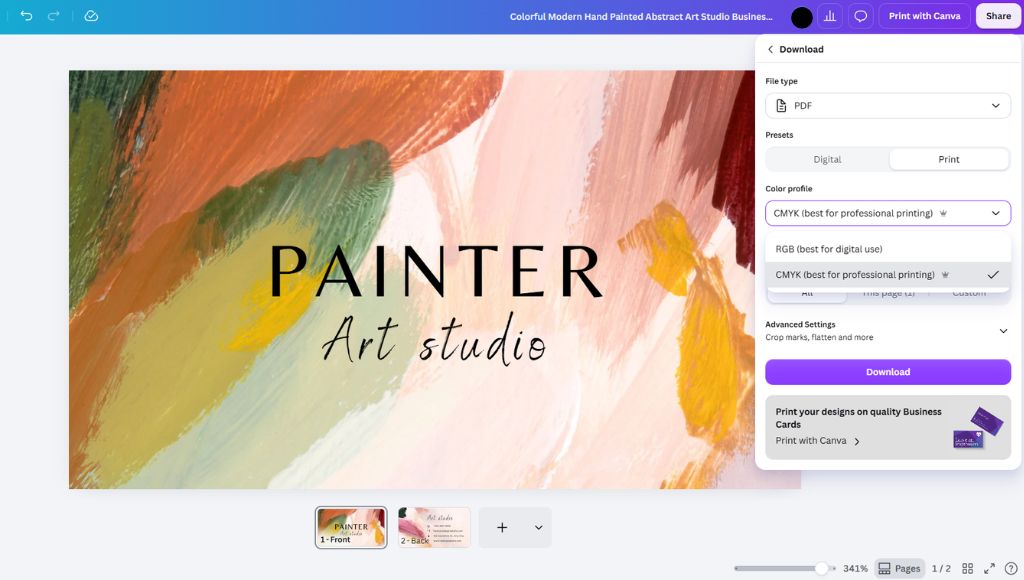
ChatGPT creates images in RGB, the colour mode screens use. Printers mix cyan, magenta, yellow, and black ink instead (here's what the K in CMYK means). Ink can't match every colour a screen can show, so electric blues, bright greens, and neon pinks often print a shade duller.
You don't need special software for this. Canva Pro has a CMYK option in its PDF Print export, and Illustrator lets you change the document colour mode before you save. Once it's converted, flip between the old and new files. A bright teal that turns muddy on screen will look muddy on paper too, so tweak it while it's still easy to change.
When colour matters, order a single copy with code FREEPROOF before a full run. Orders over $100 also include a free hard-copy proof.
Add Bleed and Keep Text in the Safe Zone
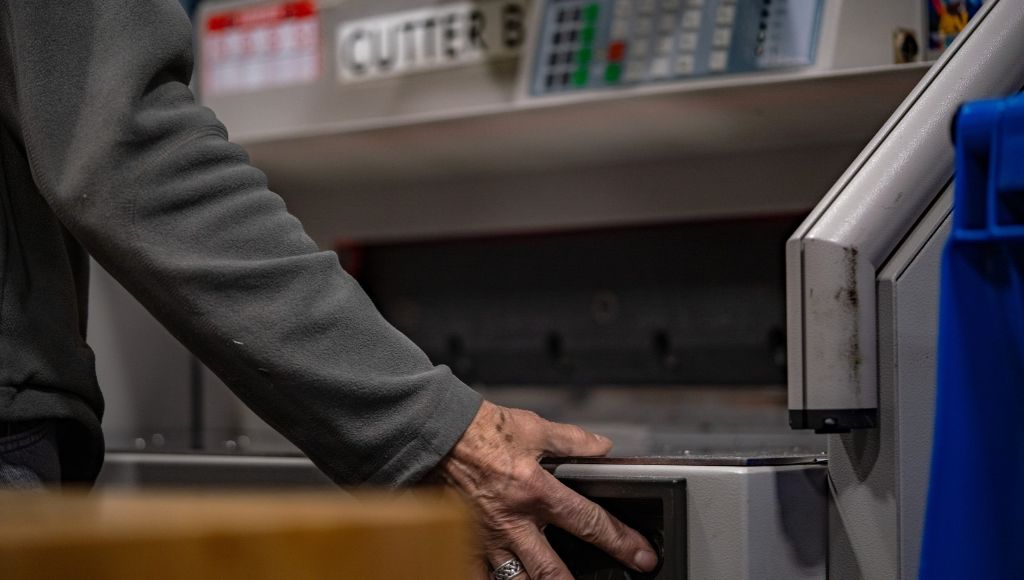
ChatGPT images don't come with bleed, crop marks, or margins. Printers trim stacks of sheets at once, and the blade can shift a hair, so your design needs ⅛" of extra background past the trim line on every side. Without it, a thin white sliver can show up along one edge.
Extend the Background
Say you've got the perfect image, but it fills the frame edge to edge. That's fine on a screen. For print, you need a little extra all the way around, and ChatGPT can add it if you ask it to widen the scene. Drag the new version so it overhangs your page by ⅛". If you're working in Canva, turn on Show print bleed in File > Settings first, and you'll see the line to aim for.
Move Text and Logos Inward
Trimming isn't perfectly exact, so anything within ⅛" of the edge is at risk. Pull your headline and logo in past that line, which printers call the safe zone. AI images rarely leave room for it on their own. With the important stuff moved in, export a print-ready PDF and turn on crop marks and bleed.
When to Vectorize Instead of Upscale
Upscaling a logo is a bit like enlarging a photocopy. It gets bigger, but the edges never get crisper. Vector artwork doesn't have that problem because it's drawn with lines and curves rather than pixels, so a logo traced once can go on a business card or a 6-foot banner. Photos and painterly AI art are the exception, since they don't trace well and are better upscaled.
| Raster (What ChatGPT makes) | Vector | |
| Built From | Pixels | Paths and shapes |
| When Enlarged | Gets soft or blocky | Stays sharp at any size |
| Best For | Photos, painterly art, detailed scenes | Logos, lettering, icons, sticker cut lines, signs |
Tracing tools turn a raster image into vector paths. Adobe Illustrator has Image Trace, Inkscape has a free Trace Bitmap feature, and Vectorizer.AI works right in your browser. Flat art with a few solid colours traces cleanly. Photos and soft gradients usually come out blotchy, so upscale those instead.
ChatGPT can also write SVG code for simple shapes, which we covered in our roundup of the best AI tools for designing print materials. Treat that code as a rough start, not a finished file. Vectors matter most for custom stickers, where the cut line has to follow the shape exactly.
What Our File Check Catches
Before your order goes to press, our team looks for the problems that show up most in AI-made files:
- Images below 300 DPI at finished size
- No ⅛" bleed, or a background that stops at the trim
- RGB colour that will shift in print
- Fonts that aren't outlined or embedded
- Text or logos sitting outside the safe zone
You can attach your file to your order at checkout, or send it through the Send Us Your Files link on any product page. Our team usually checks submitted files a few times a day, so a quick call speeds up any changes. To catch issues before you send anything, run your file through our free print-ready self-audit.
Print Your AI Design With Little Rock
When the pixels, colour, and bleed all check out, your ChatGPT image is ready to print. Little Rock® prints custom flyers with no minimum order, so you can test a single copy with FREEPROOF before ordering a full stack for your next event or promotion.
Frequently Asked Questions About Printing ChatGPT Images
Can I sell prints of images I made in ChatGPT?
OpenAI's terms of use, effective January 1, 2026, say you own the output and that OpenAI assigns its rights in it to you. Other people can get similar images, and your rights don't extend to theirs. Steer clear of prompts built around real brands, characters, or artists' styles. We're a print shop, not a law firm, so check with a lawyer before selling prints in volume.
What DPI does a ChatGPT image need for print?
300 DPI at finished size, bleed included. A 6” x 4" postcard needs 1875 x 1275 pixels, which most ChatGPT images fall a little short of without upscaling.
Can I send a PNG, or do you need a PDF?
Our product pages ask for a high-resolution PDF, exported with a setting called Print PDF or Press Quality PDF.
Will the text in my ChatGPT image print clearly?
Often not, especially small or enlarged lettering. Retype headlines, dates, and contact details with a real font so they print crisp and spelled correctly.
Can I get a test print before ordering more?
Yes. Order one copy and enter FREEPROOF at checkout for a free sample. Orders over $100 also come with a free hard-copy proof.