
Summary:
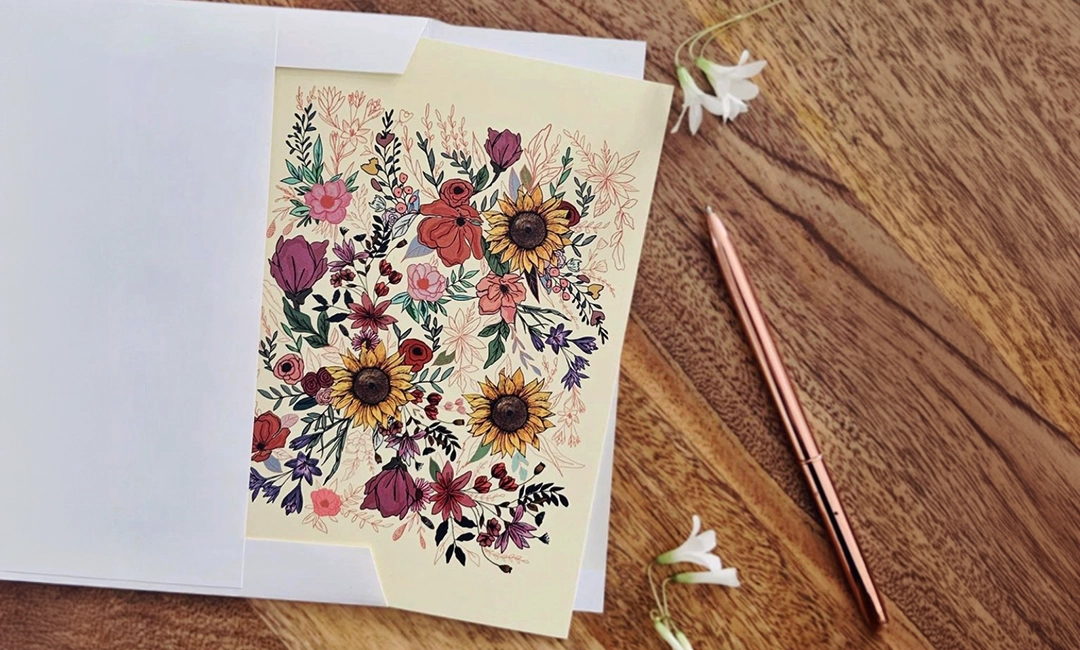
Photographing artwork for print comes down to three things: resolution, lighting, and accuracy. Most Calgary art prints are produced at 11″ × 14″, which requires images captured at 300 PPI for crisp results. Even lighting prevents glare, straight-on framing avoids distortion, and proper color balance ensures your printed piece matches the original. With the right setup and file prep, photographed artwork can reproduce cleanly without losing texture, contrast, or edge detail.
Updated January 2026
| Time to Read |
|
| What You’ll Learn |
|
| Next Steps |
|
High-quality photos are essential for printing artwork because they help capture the detail and colors of the original piece. To ensure the highest-quality print, you want to consider the equipment you’re using while thinking about lighting, positioning, and more.
Here’s a breakdown of how to get the best photo of your artwork, plus easy steps on how to edit the digital file before submitting to Little Rock for professional printing. And when you are ready to print, use discount code ARTIST25 for 25% off your order.

Essential Rules for Photographing Artwork
If you only take one thing away from this guide, let it be this: print quality is decided the moment you take the photo. Heed the following core rules, and you’ll avoid the vast majority of issues that cause artwork to look bad when printed.
- Use even, glare-free lighting: Natural light or soft, diffused artificial light works best. Avoid direct sunlight and overhead spotlights, which create hot spots and reflections, especially on glossy or textured artwork.
- Photograph straight-on (not on an angle): Your camera lens should be perfectly parallel to the artwork. Shooting from above or off to the side introduces perspective distortion that’s hard to fix later.
- Use a tripod or stable surface: Speaking of photographing straight-on, you should always use a tripod or phone stand to ensure sharpness and consistent framing. Even slight hand movement can introduce blur.
- Capture at a high enough resolution for printing: Your final image needs to be large enough to print at 300 PPI at your target size. Low-res photos that look fine on screen will appear soft or pixelated in print.
- Keep the entire artwork in frame: Don’t crop too tight, and leave a small buffer around the edges so nothing important gets cut off when the file is sized or trimmed.
- Avoid shadows, color casts, and reflections: White walls, neutral backdrops, and consistent light sources help prevent unwanted color shifts that change how your artwork prints.
Gather Your Equipment
Before you start photographing your artwork, you’ll need to gather your equipment. Here’s a quick checklist of what to have and why it’s important:
- Camera: A professional, high-quality option like a DSLR or a mirrorless camera with a high-resolution sensor is ideal. If you don’t have a professional camera, a smartphone can also work if used correctly. Your goal is to get a crisp, hi-res image, meaning 300 PPI (pixels per inch) or 300 DPI (dots per inch).
- Tripod: In order to keep the camera steady and ensure sharp images, a tripod is a must.
- Remote Shutter Release: This is another way to help prevent camera shake and keep the camera stabilized.
- Lighting Enhancements: Beyond finding the best natural light, consider adding extra lighting tools like softbox lights and LED panels.
- Polarizing Filter: An optional tool, but super useful for reducing glare on glossy surfaces.
Setting Up Your Artwork & Space
Having a good setup area is key to getting a high-quality image. First, you want to prep your artwork by ensuring that it’s clean and free from dust, smudges, and other marks. If your artwork is on paper, make sure it’s straight and level to avoid any distortion. You may want to consider mounting it to the wall for an easy, flat surface.
If you’re not using any specialty lighting like softbox lights or LED panels, find the best place to use natural light, like near a large window. Avoid direct sunlight, which can create harsh shadows and highlights. You also want to find a neutral background so it doesn’t distract from the artwork.
Taking The Photo
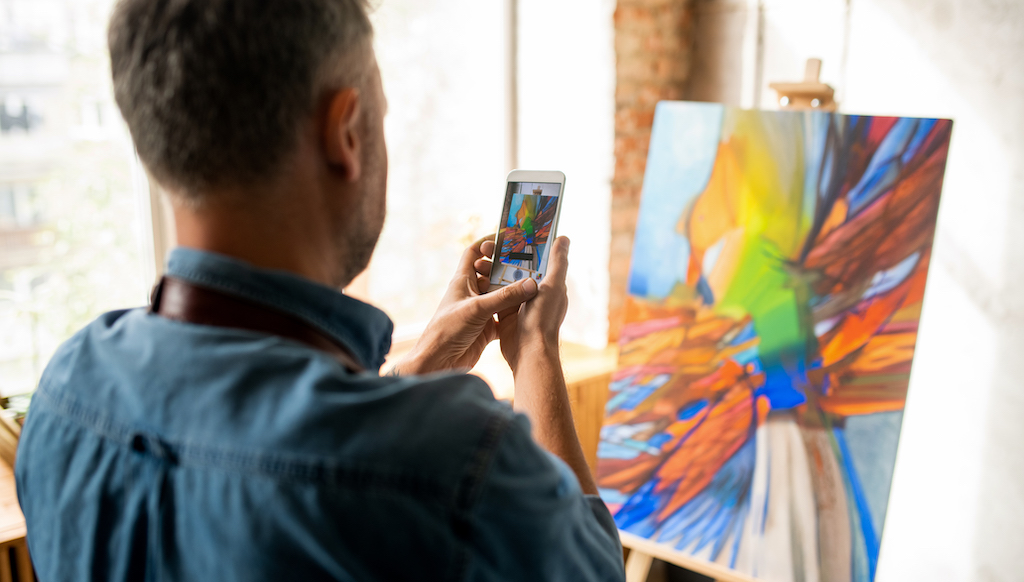
Now it’s time to get your camera (or smartphone) prepped and ready to shoot. Use these camera settings for the best result possible:
- Set your camera to the highest resolution
- Use a low ISO setting (100-200 to minimize noise)
- Set your aperture between f/8 to f/11 for sharpness
- Set the white balance manually to match your lighting setup
- Use manual focus to ensure the entire artwork is in sharp focus
Most of these settings will be automatic on a smartphone, but you can check your phone settings just to be sure.
Be sure to take multiple shots with slight variations in exposure and focus so you have plenty of options to choose from. Once you get a clear photo of your artwork, save the JPEG file to your computer.
Editing & Finalizing Your Photo in Canva
We recommend using a free design website like Canva to edit and convert your image to a print-friendly PDF before submitting your finished photo for professional printing. To edit your image in Canva, simply:
- Enter the dimensions of the print size you want into the custom size search bar and click “Create new design”.
- Upload the JPEG of your artwork by selecting “File”, “Import Files”.
- Drag the sides and corners of your image to fill the blank space of your custom size print.
- Make any necessary adjustments or edits you want. Some basic adjustments include:
- Color Correction: Adjust the colors to match the original artwork.
- Brightness and Contrast: Fine-tune to enhance details.
- Cropping: Remove any unwanted background and ensure the artwork fills the frame.
- Sharpness: Ensure the image is sharp without losing the integrity of the original artwork.
- Name your file and click “Share” then “Download”.
- Select “PDF print” and “crop marks and bleeds” for the highest quality.
- Download and save the PDF to your desktop.
It’s easy to turn your artwork into other printables as well! Little Rock Printing has free Canva templates to help get you started.
Standard Art Print Sizes for Calgary Customers
When photographing your artwork, it helps to know what size you’re actually preparing it for. These are the most common art print sizes that our customers in Calgary order through Little Rock Printing:
| Common Print Sizes | Primary Uses | Resolution Guide (at 300 PPI) |
| 8” x 10” | Small decor, gifts, and portfolio prints | 2400 x 3000 px |
| 11” x 14” | Popular size for wall art | 3300 x 4200 px |
| 16” x 20” | Gallery-style prints | 4800 x 6000 px |
| 24” x 36” | Large-format wall displays | 7200 x 10800 px |
Submit to Little Rock For Printing
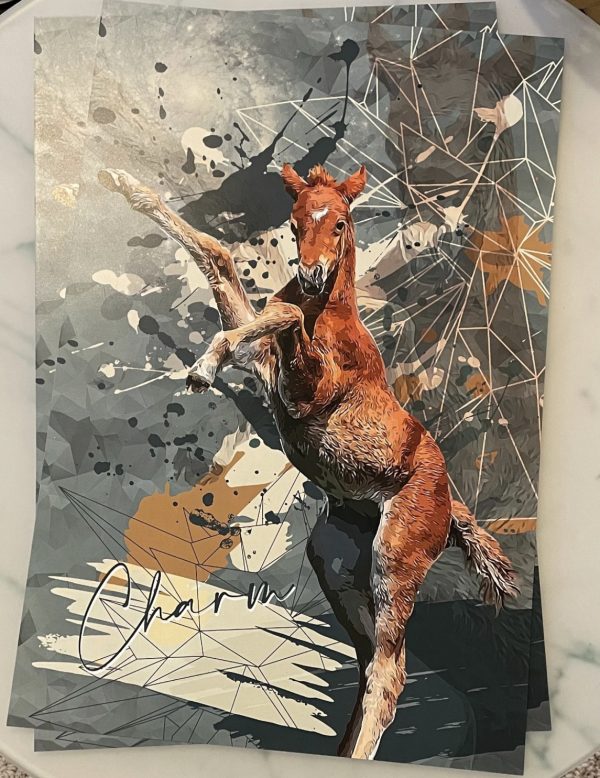
By following these steps and tips, you can ensure that your artwork is photographed and printed with the highest quality possible. When you’re ready to print, submit your final PDF to Little Rock, where you can choose from customizations like print size, paper type and more.
See also: Little Rock vs. Walmart for Printing Documents
We offer a free paper sample kit so you can make an informed decision on which paper type is best before placing your order. You can also request a free sample print of your order by selecting “FREEPROOF” at checkout and don’t forget to use discount code ARTIST25 for 25% off your order when you are ready to place it. If you have any questions about your order or any of our other printing services, contact the Little Rock Printing experts.
Frequently Asked Questions
Can I photograph artwork with a phone instead of a camera?
Absolutely! Most modern phones can produce amazing results if you shoot at full resolution, use even lighting, and keep the phone perfectly parallel to the artwork (we recommend a tripod or phone stand to achieve this).
Should I edit my artwork photos before printing?
Light editing is fine (cropping, white balance, exposure). But our experts at Little Rock suggest that you avoid using heavy filters or saturation boosts, as they can distort the original colors.
Do I need to remove my artwork from its frame?
Yes. This is especially important because glass tends to introduce glare and reflections that can be hard to remove in post-processing.
How close should I stand when photographing artwork?
Far enough to avoid lens distortion, but close enough to fill the frame. A small margin around the artwork is better than cropping too tightly.
What if my photo resolution is too low?
Upscaling software can help slightly, but it won’t replace true image detail. If possible, re-shoot the artwork at a higher resolution.


